Projects & calendar
Weddings, events and weekly orders on one calendar, with every date and detail close at hand.
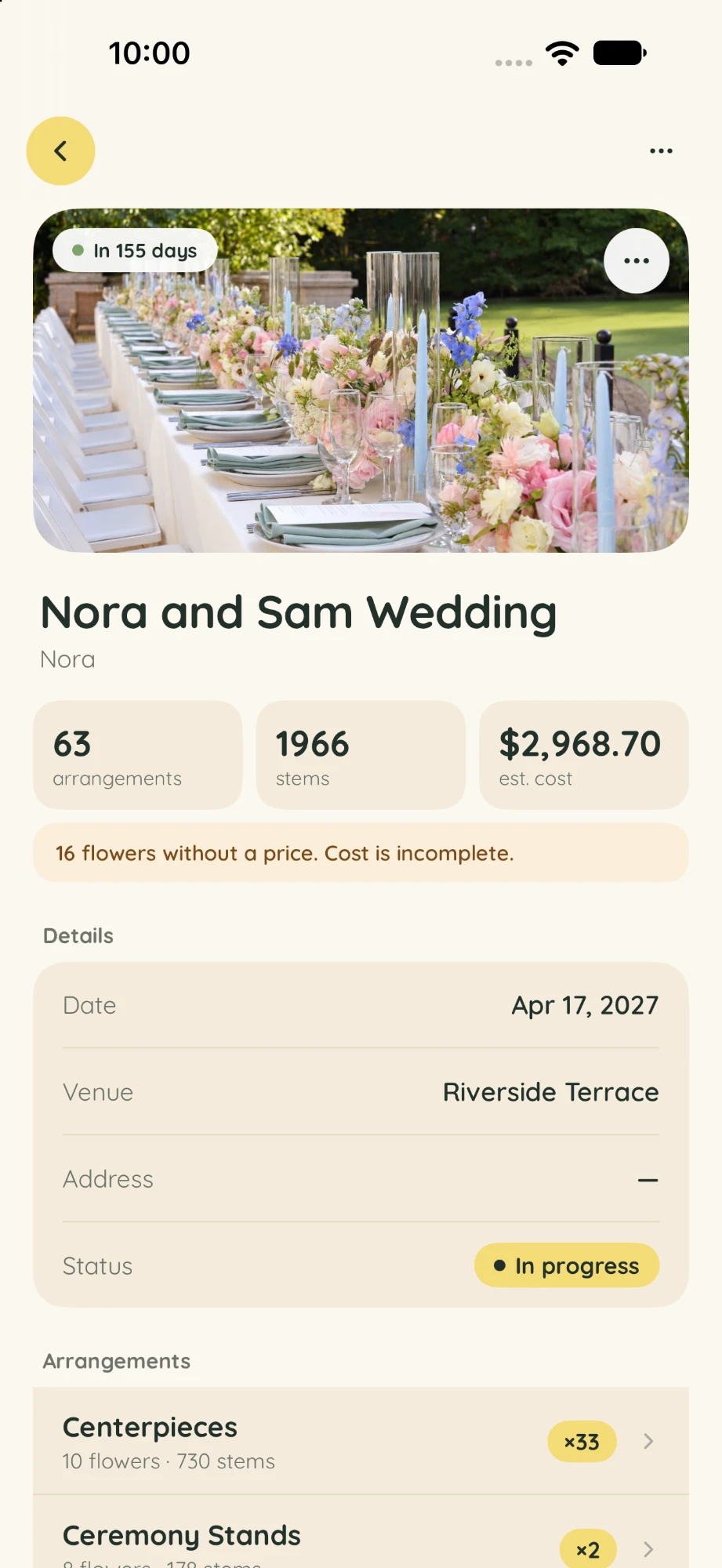
Plan floral projects, build recipes, and prepare flower orders, all in one place.
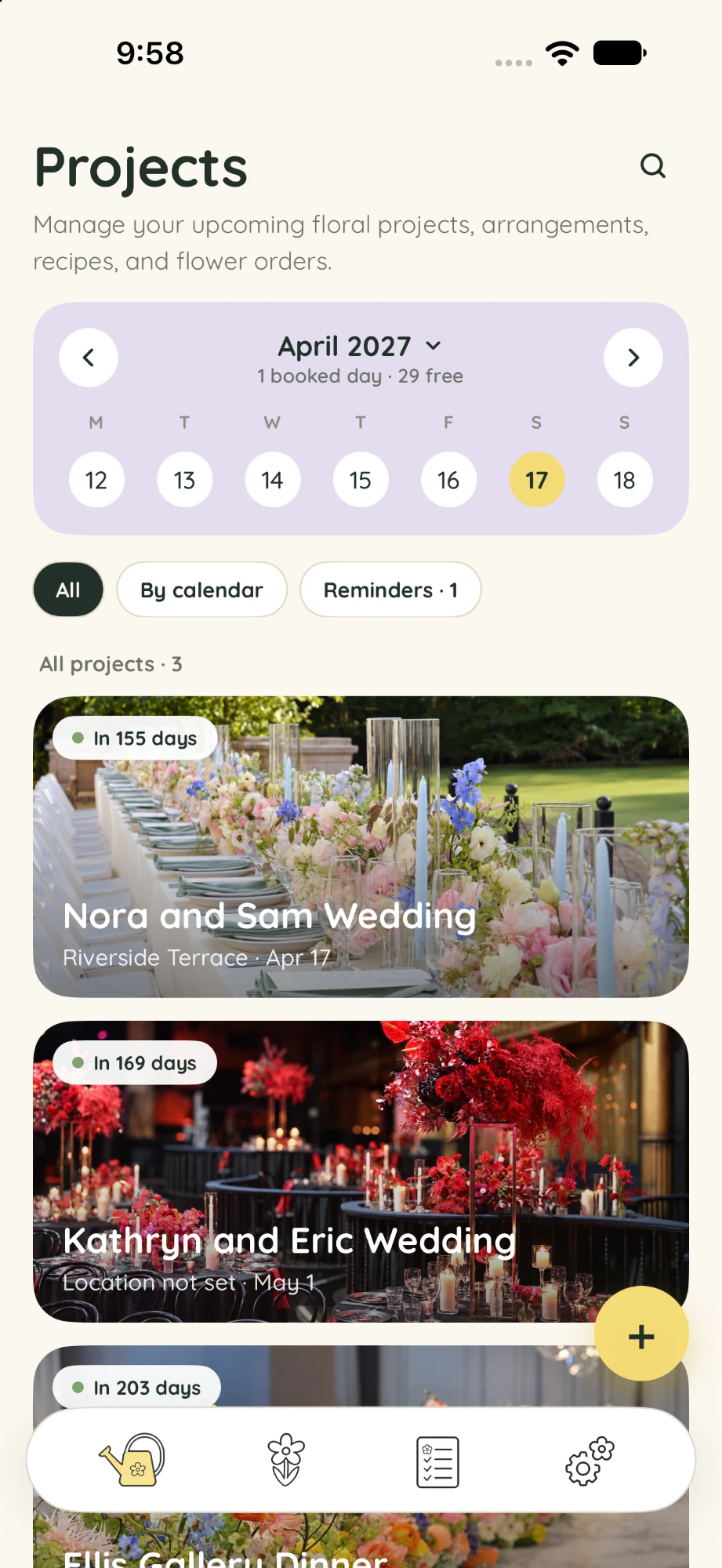

Weddings, events and weekly orders on one calendar, with every date and detail close at hand.
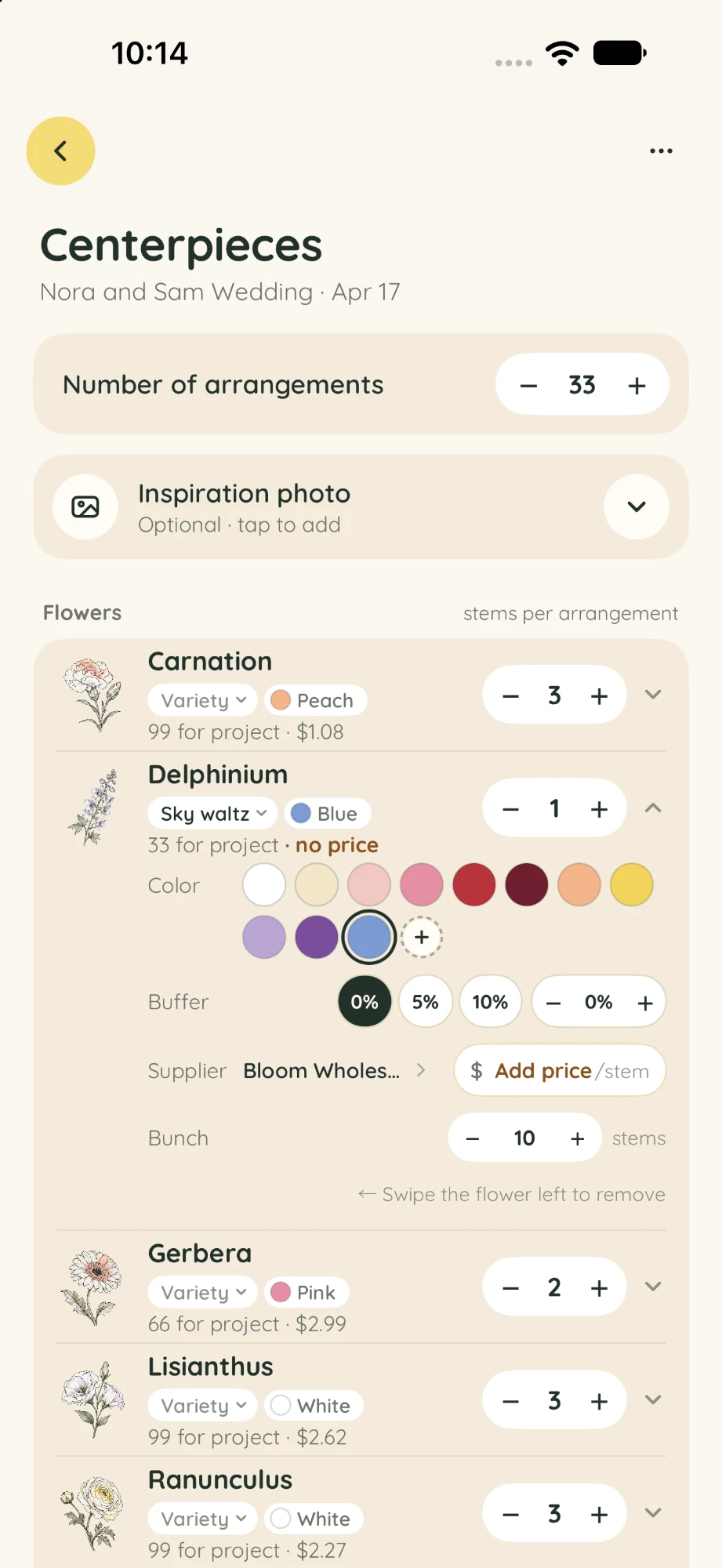
Build each arrangement stem by stem, save it as a recipe and reuse it next time.
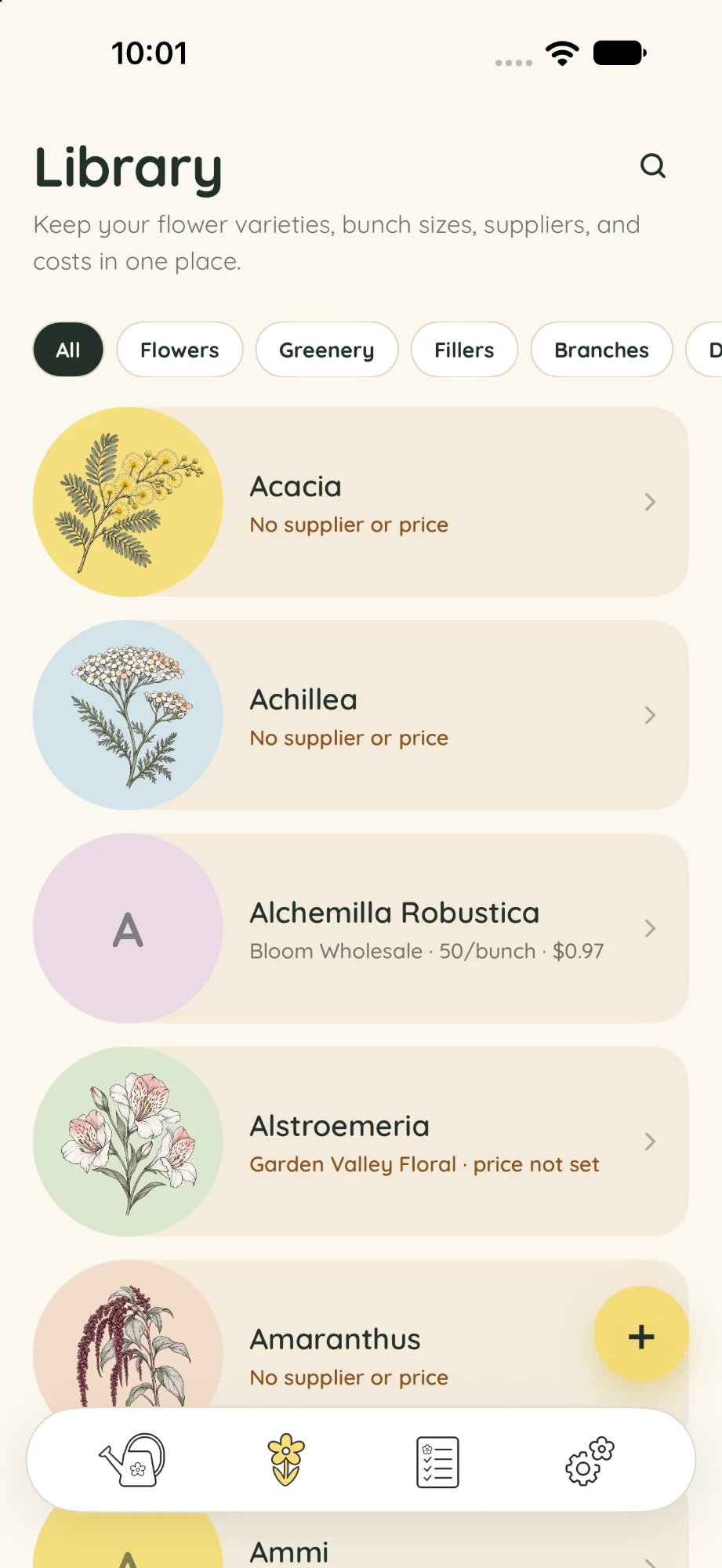
Start with 50 illustrated starter flowers, then add your own with bunch sizes and prices.
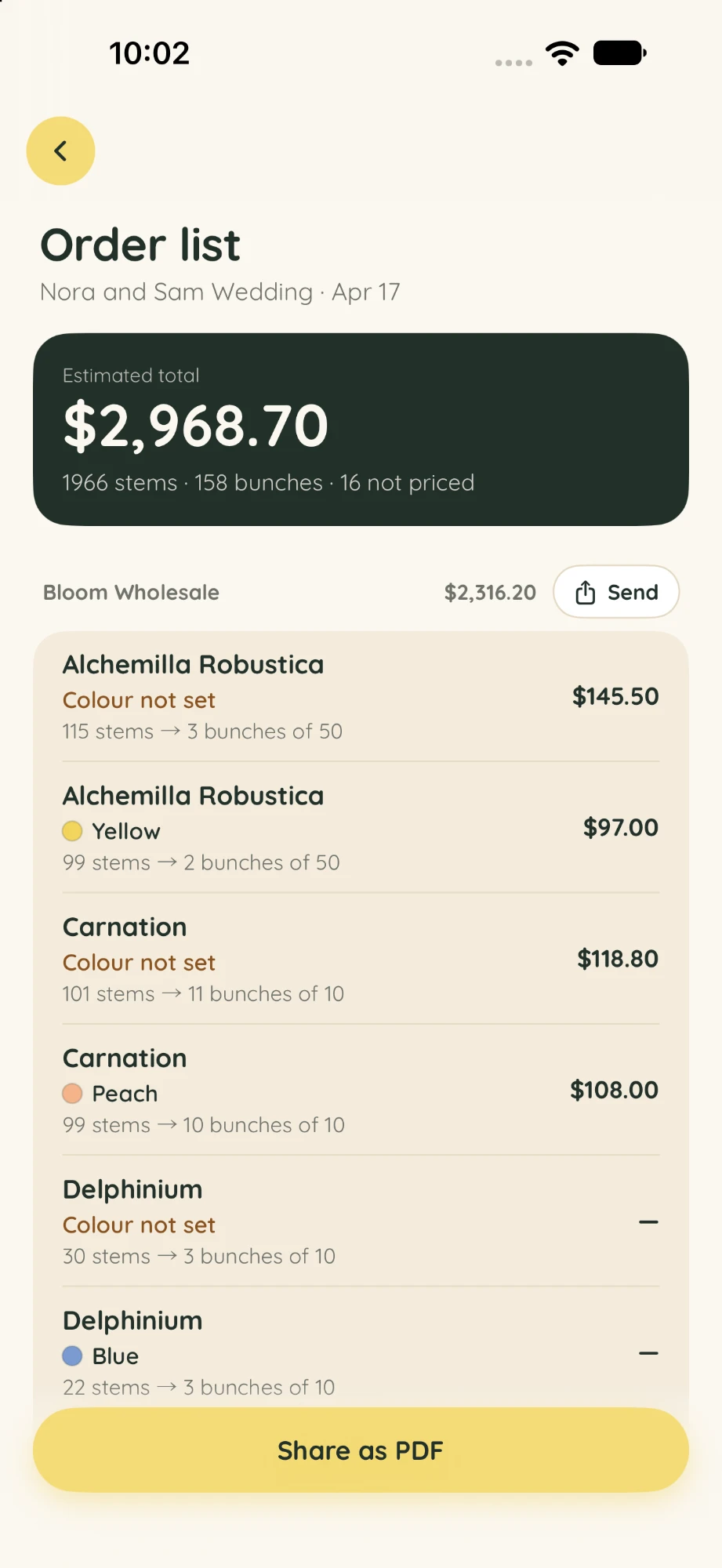
Every stem is added up, grouped by supplier and rounded to full bunches.
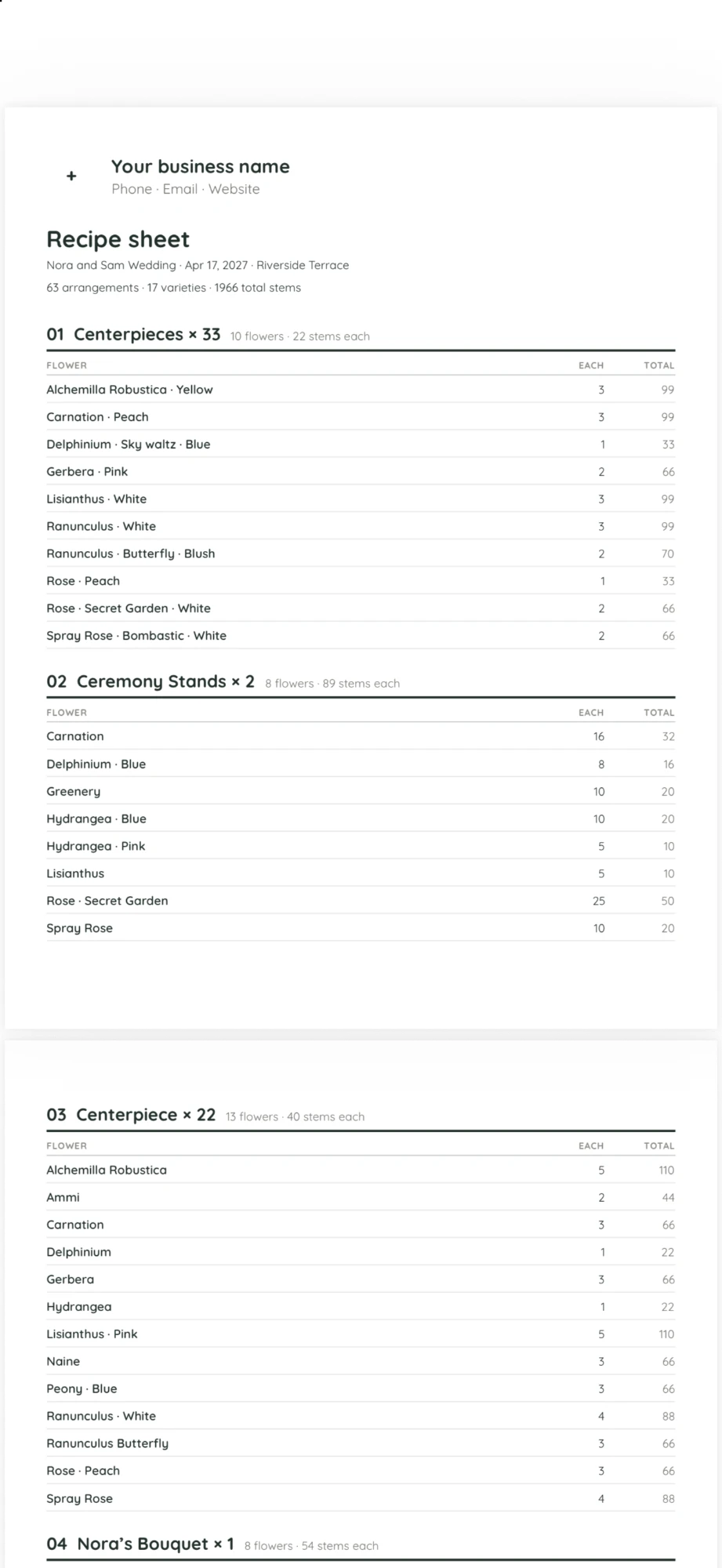
Send recipe sheets to your team and order lists to suppliers as clean PDFs.
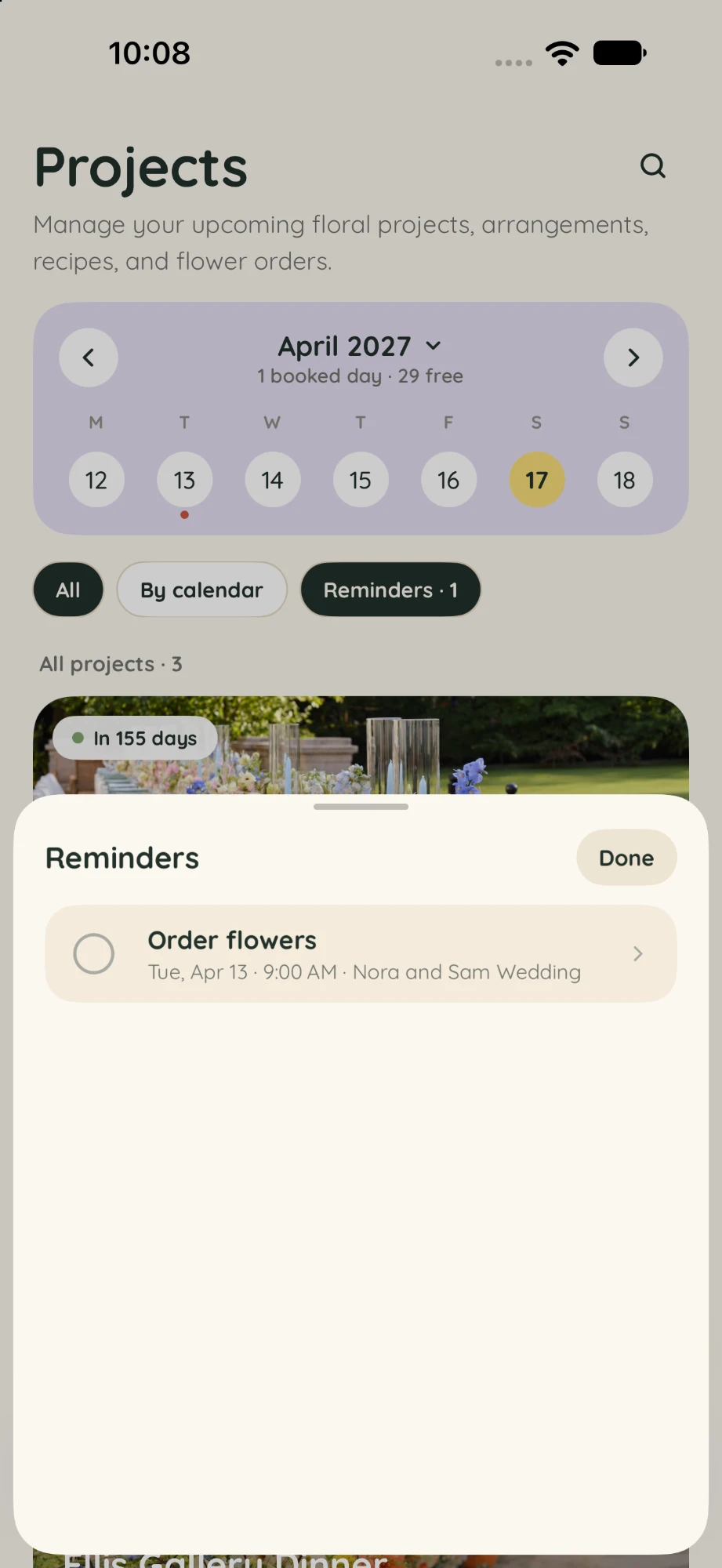
Get reminded when it is time to order, and pick up on any of your devices.
Go to Settings → Suppliers and add the wholesalers and growers you buy from.
In the Library, set how many stems come in a bunch and the price per stem.
Add a wedding, event or regular order with its date and details.
Build arrangements from scratch, or start from a saved recipe.
Review stems by supplier, then share the order list and recipe sheets as PDFs.
From the calendar, set reminders so you never miss an order day.
Both plans include every feature. Start with a 7-day free trial.
7-day free trial
7-day free trial · Save 16%
Available on the App Store in the United States, Canada, the United Kingdom and Australia. Prices are in US dollars; Apple shows the price in your local currency before you confirm. The free trial is for eligible new subscribers. Apple bills your Apple Account, and subscriptions renew automatically unless canceled at least 24 hours before the trial or current period ends. Manage or cancel in Flecipe → Settings → Subscription, or in your iPhone’s Settings. See the Terms of Use.
Yes. Your projects, recipes and orders are stored on your iPhone and, with iCloud sync on, in your own private iCloud account. Flecipe has no account to sign up for, doesn’t send your content to its own servers, and has no ads, analytics or tracking. Read the Privacy Policy.
Yes. With iCloud sync on (Settings → Data & Sync), your projects, recipes, flowers, suppliers and photos sync through your private iCloud account to devices signed in to the same Apple Account. Syncing can sometimes take a little while.
In Flecipe, go to Settings → Subscription → Manage Subscription. Or open the Settings app on your iPhone, tap your name, then Subscriptions, and choose Flecipe. Cancel at least 24 hours before the trial or current period ends to avoid the next charge. Deleting the app doesn’t cancel a subscription.
Yes. Go to Settings → Data & Sync and tap Save Backup to save a copy of your projects, recipes, flowers, suppliers and photos wherever you choose. iCloud sync keeps your devices up to date, but it isn’t a separate backup, so save one now and then.
Flecipe works on any iPhone running iOS 18 or later.